


Printing in the Library
Step-by-step instructions for printing in the library.
Jump to a section:
- Printing from Library computers
- Printing from a Personal Laptop with Mac Operating System
- Printing from a Personal Laptop with Windows Operating System
- Self-Service Options
- Printing Pricing
Printing from Library computers
*Public printers only support 8.5" x 11" (Letter size) printing with the paper provided by the library.
-
- Do not add your own paper or envelopes to the printers, as this may casue jams or damage to the equipment.
- For printing options other than 8.5" x 11", please see Specialty Printing.
-
-
-
On any public computer in the library, log in with your NetID and password OR our visitor account.
- Visitors: Follow the instructions on the reference card attached to the computer monitor to log in using our visitor account
-
Select "Print" in the program you are using
-
Choose a Printer:
- Black and white
- MSU B/W Printing
- Color
- Library Color Printing
- Black and white
-
Click "Print"
To Pay for your Print Job with CatCard:- Go to any Print Release Station in the library (or across campus...they're all connected!)
B&W: Six stations on the 1st floor and one station on all the other floors.Color: One station located on the north side of 1st floor.- Swipe CatCard or Library Copy Card (available for purchase at the Library Service Desk)
- Select your document(s) from on-screen list
* If you logged in with your NetID, it will appear in the owner column- Click Print
- Your document will print at the adjacent printer
To Pay for your Print Job with Cash or Credit/Debit Card:
-
-
*200 total page maximum at the Cash Printing Stations. If you need to print a large quantity of documents, ask the library service desk about available options.
Credit & Debit cards accepted for amounts $1.00 or greater.
-
-
-
- Go to Cash Print station located at the Library Service Desk (front desk).
- Select your document from the list on the computer monitor
- Click Print
- A library staff member will accept your payment and give you the document(s)
-
-
Printing from a Personal Laptop with Mac Operating System
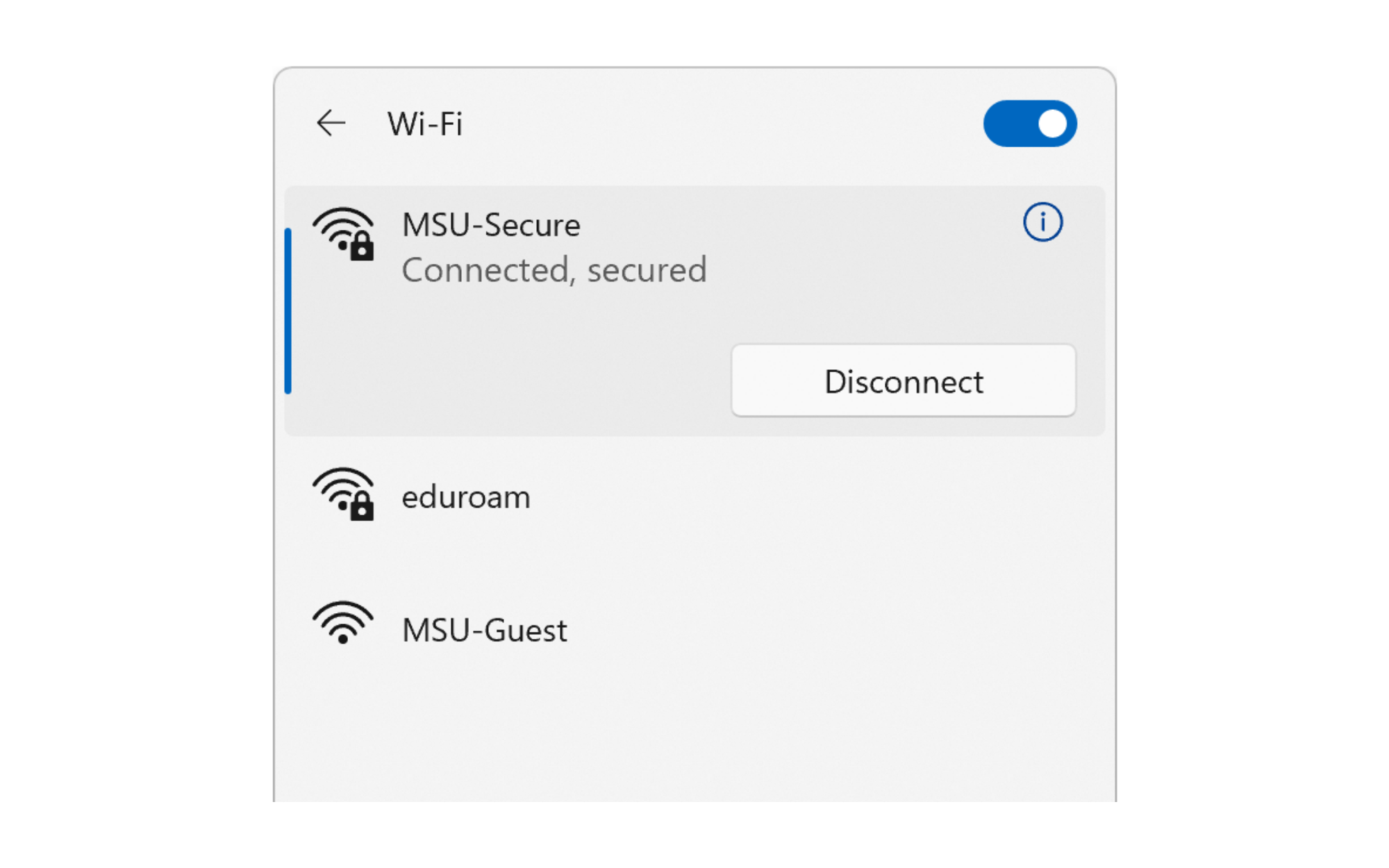
1. Connect to “MSU-Secure” Wi-Fi with NetID@student.montana.edu or NetID@msu.montana.edu and your NetID password.

2. Click on the “Go” menu in the top menu then click on “Connect to Server…” at the
bottom of the list.
*Note: Make sure that you are not in any applications when you click “Go.” Your menu bar
should have “Finder” next to the Apple logo.

3. In the field, type smb://cicada.msu.montana.edu/Pharos_Package_Installers and click connect.
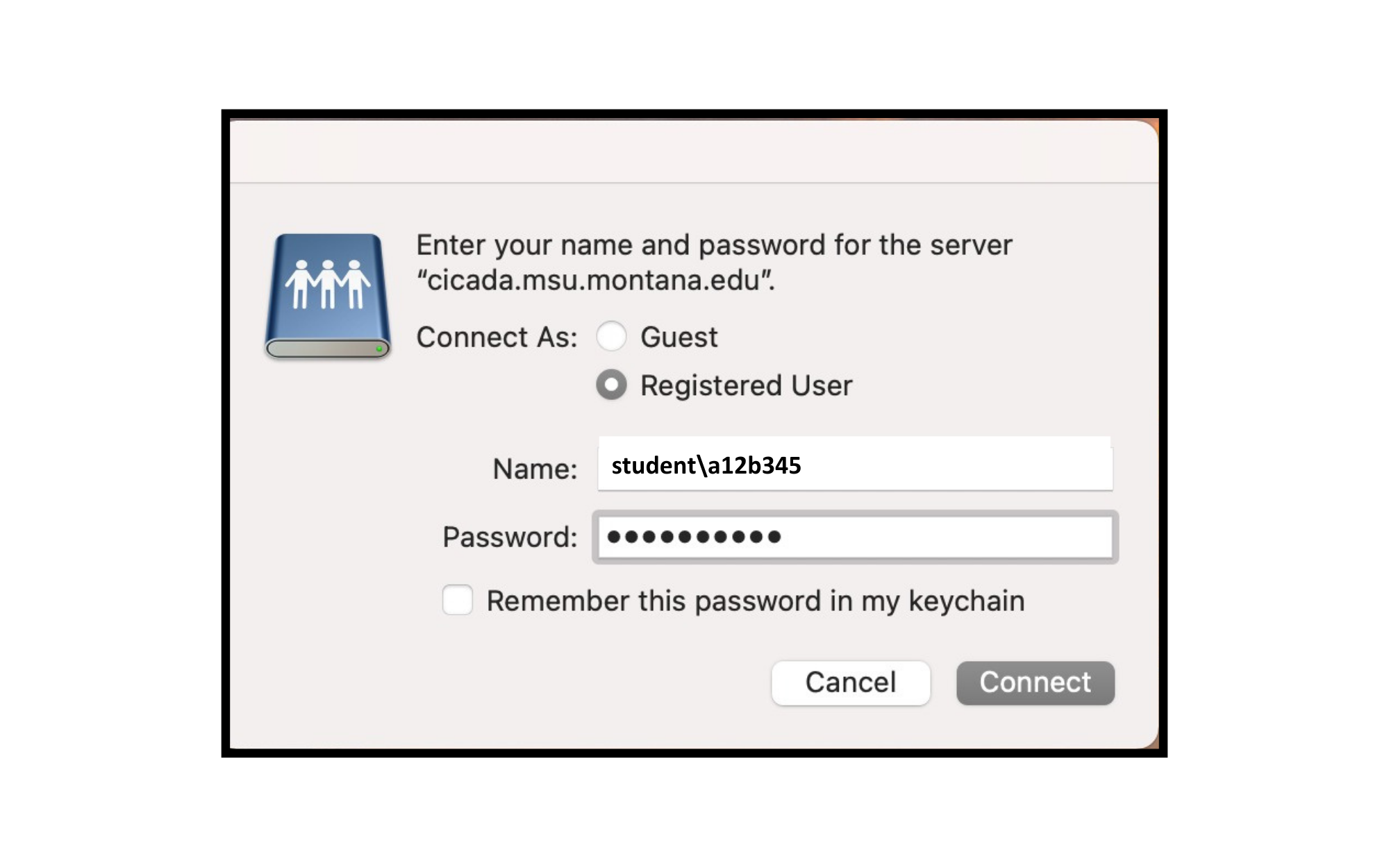
4. Enter student\NetID or msu\NetID and your NetID password in the next screen when prompted, and then click the Connect button.
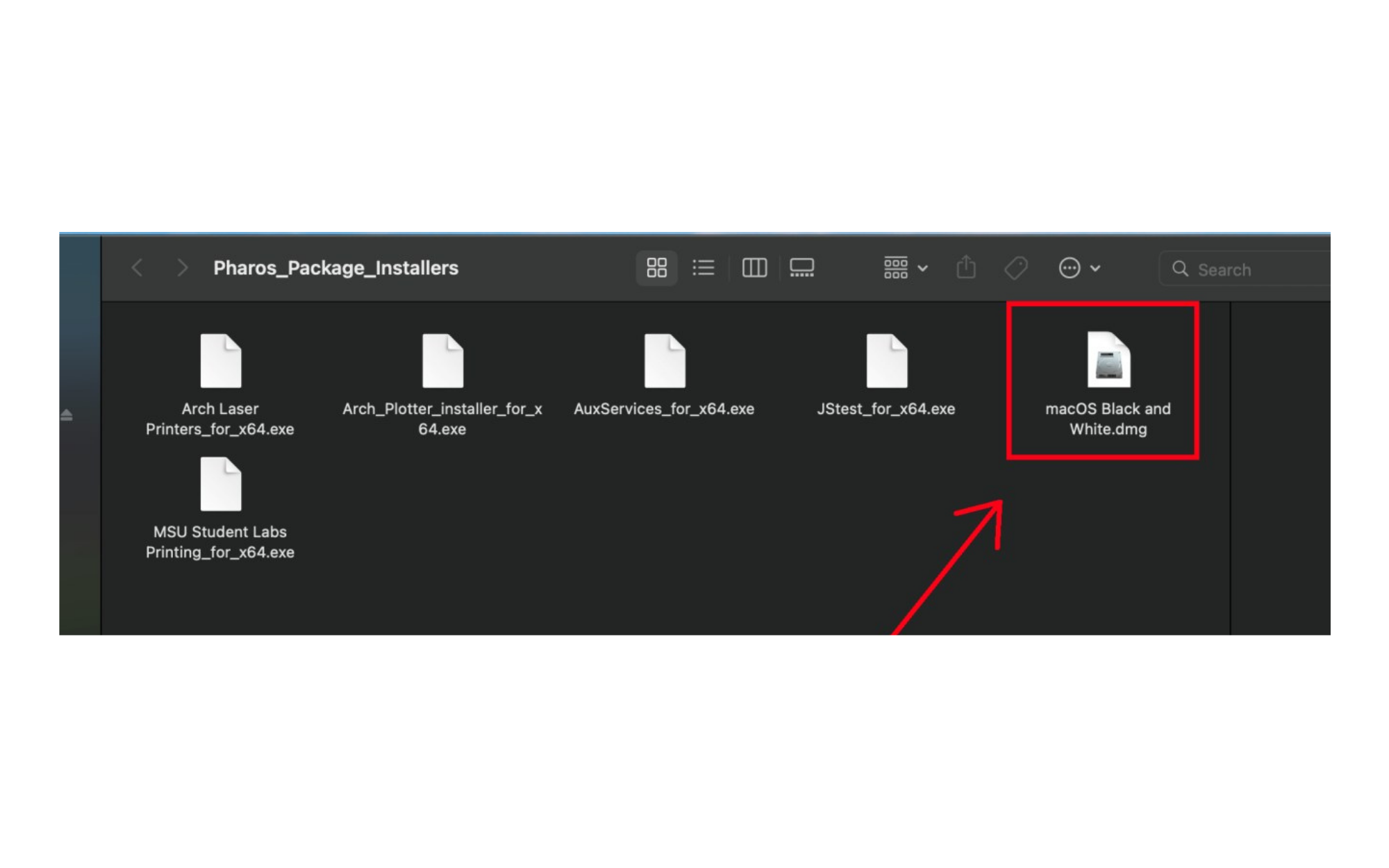
5. The “Pharos_Package_Intallers” folder will open automatically. Select MSU_Student_labs_printing_Mac.dmg file to install the printers.


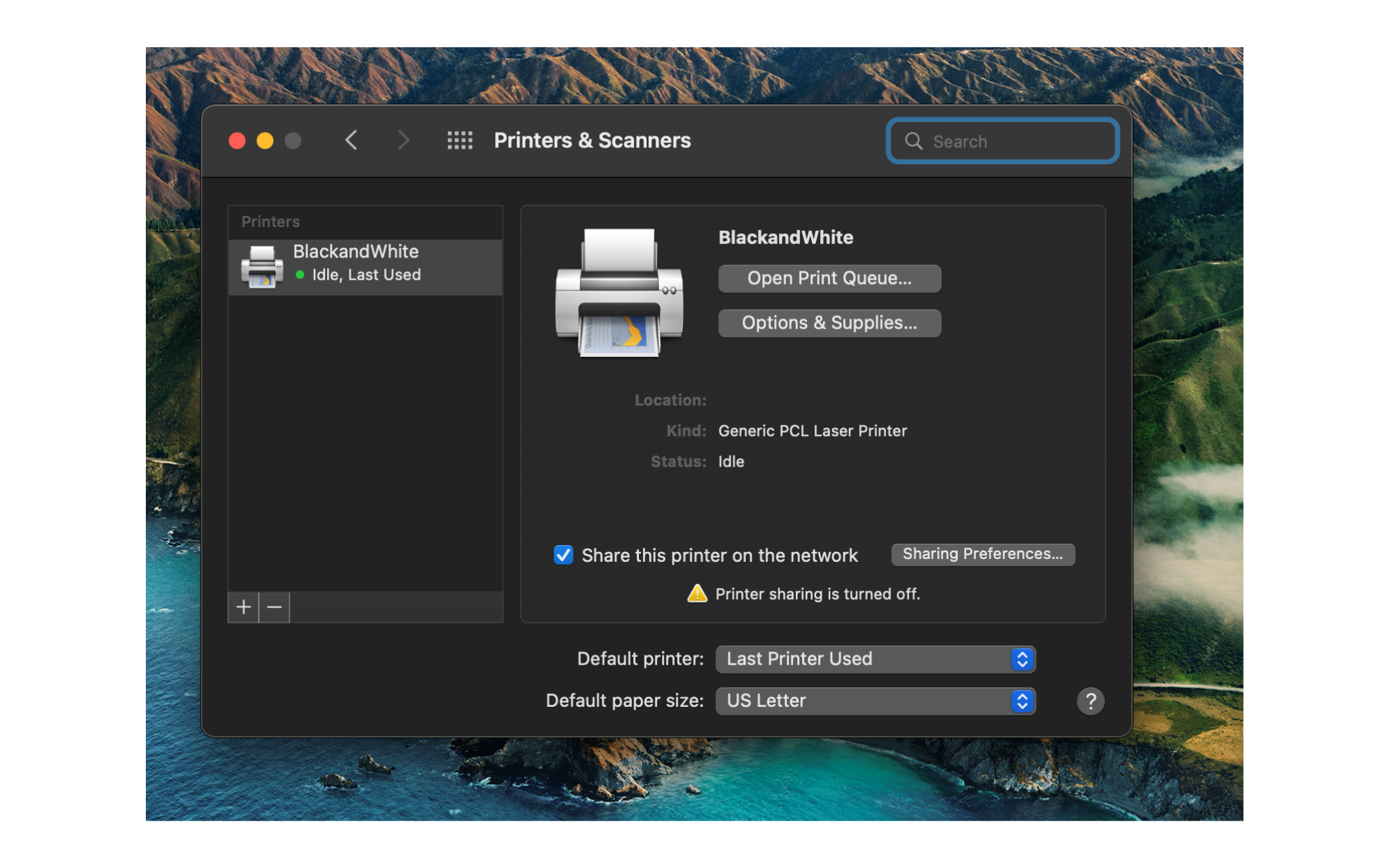
Printing from a Personal Laptop with Windows Operating System (Black & White or Color)
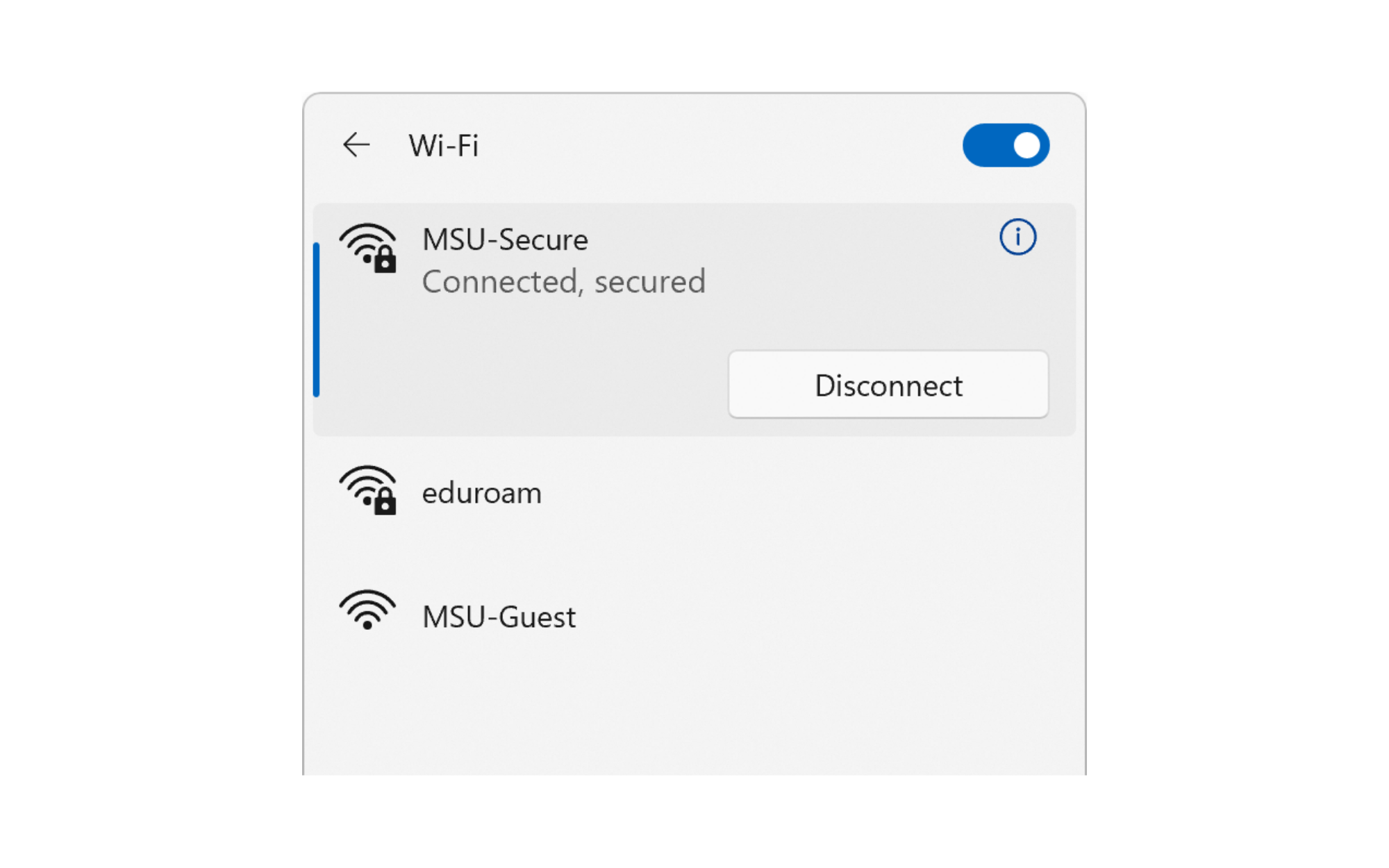
1. Connect to "MSU-Secure" Wifi with NetID@student.montana.edu or NetID@msu.montana.edu and your NetID password.
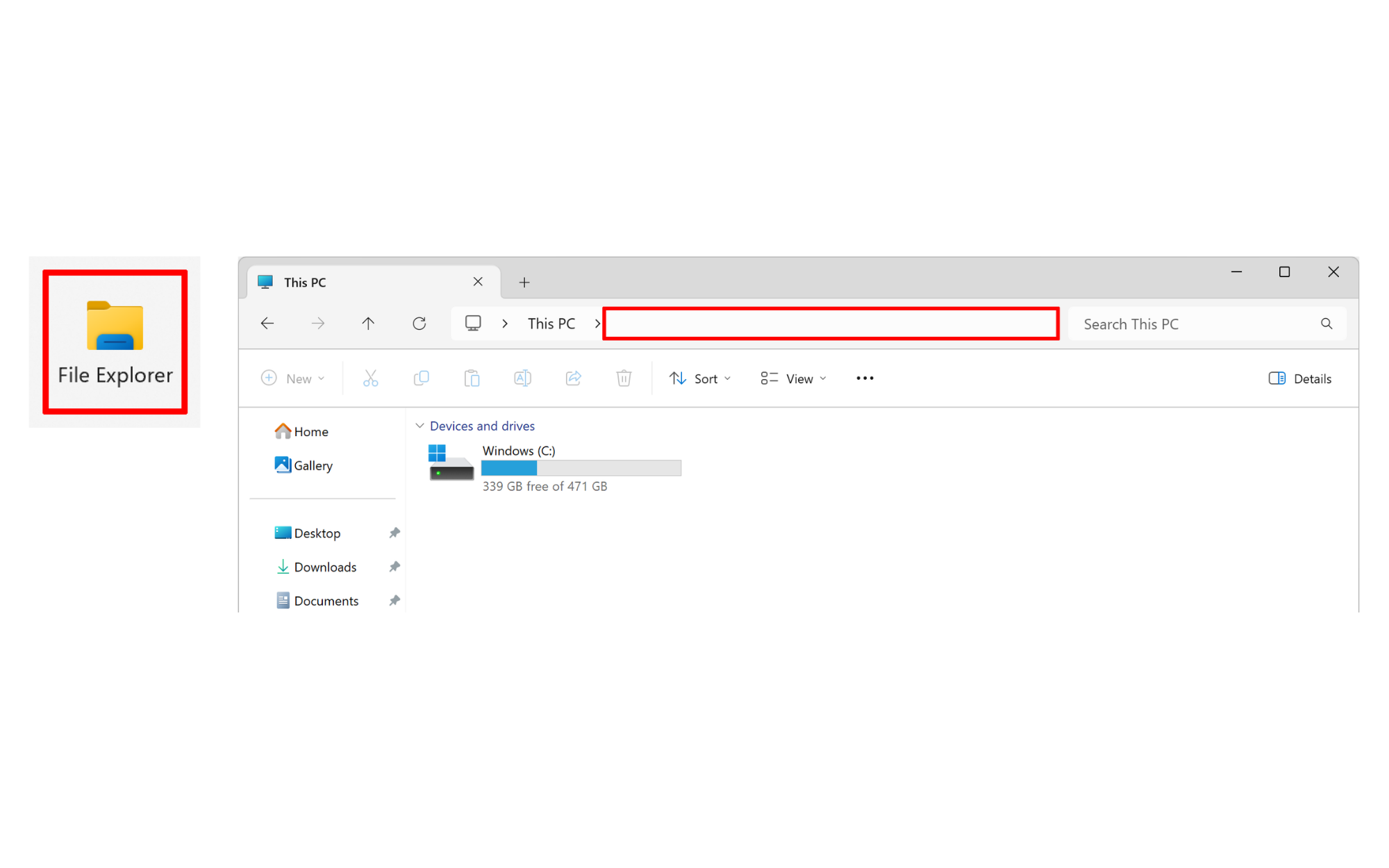
2. Open File Explorer. Click on the blank part of the file address bar.
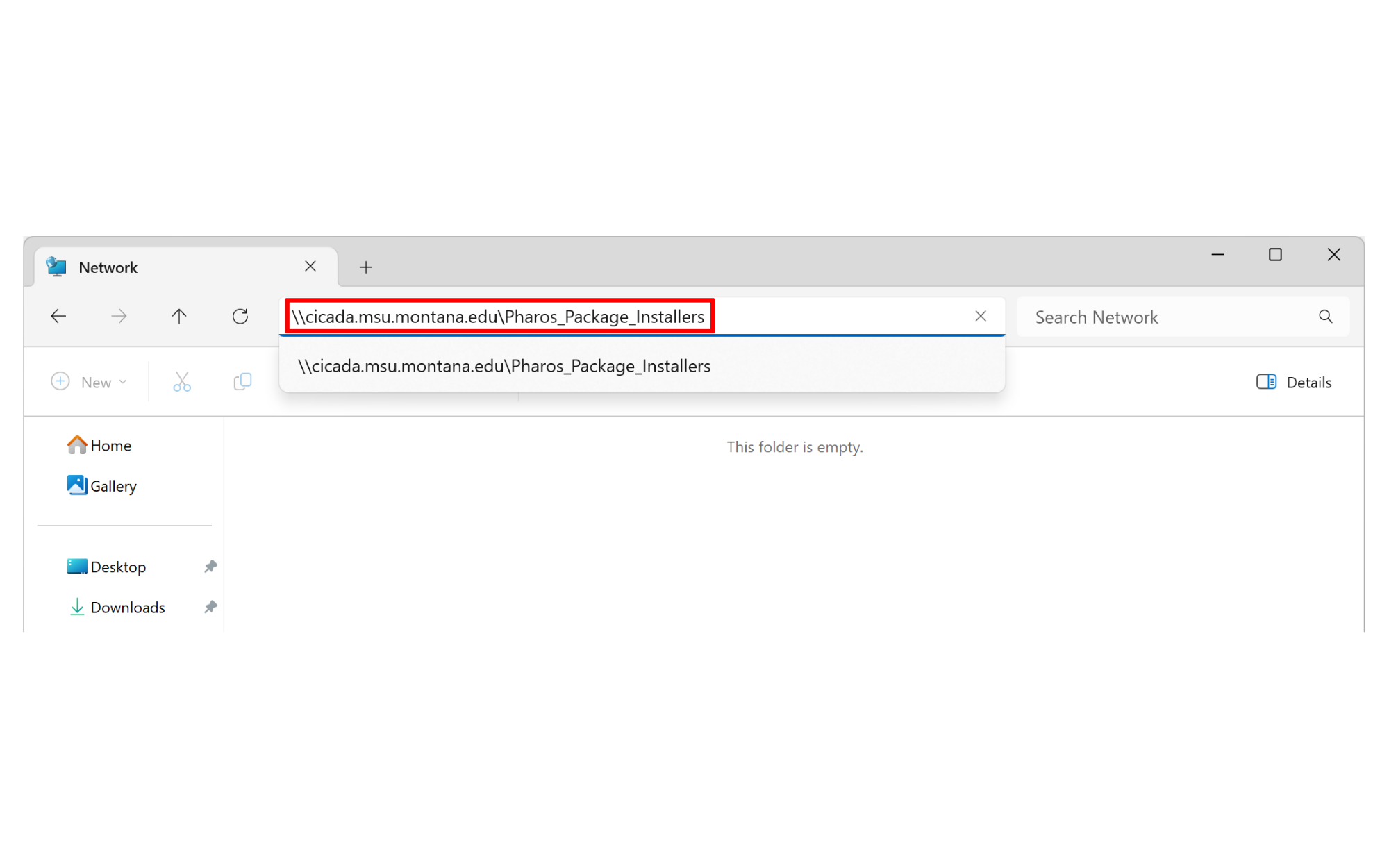
3. In the field, type \\cicada.msu.montana.edu\Pharos_Package_Installers and press enter.
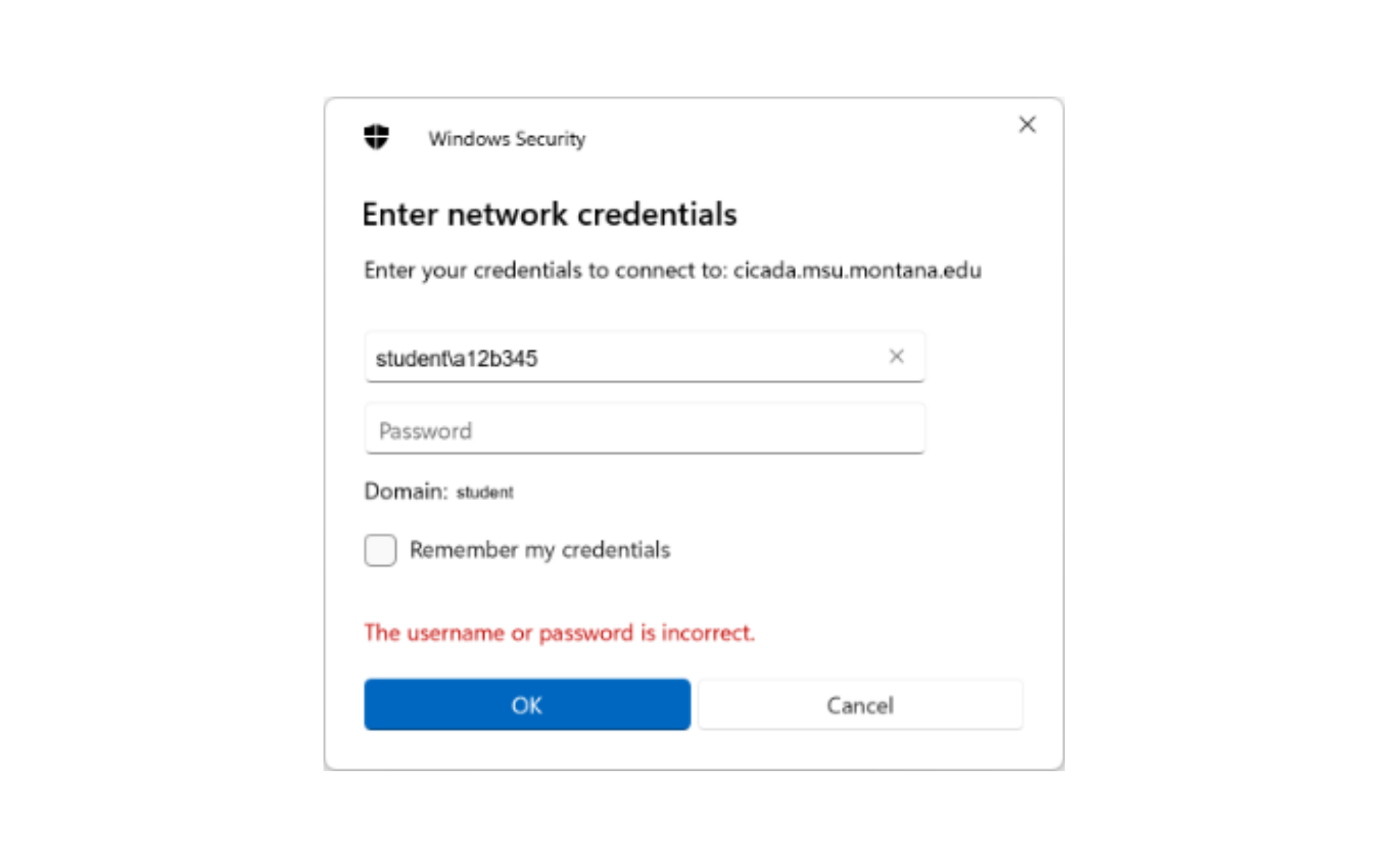
4. If promted, enter student\NetID or msu\NetID and yourNetID password in the next screen.
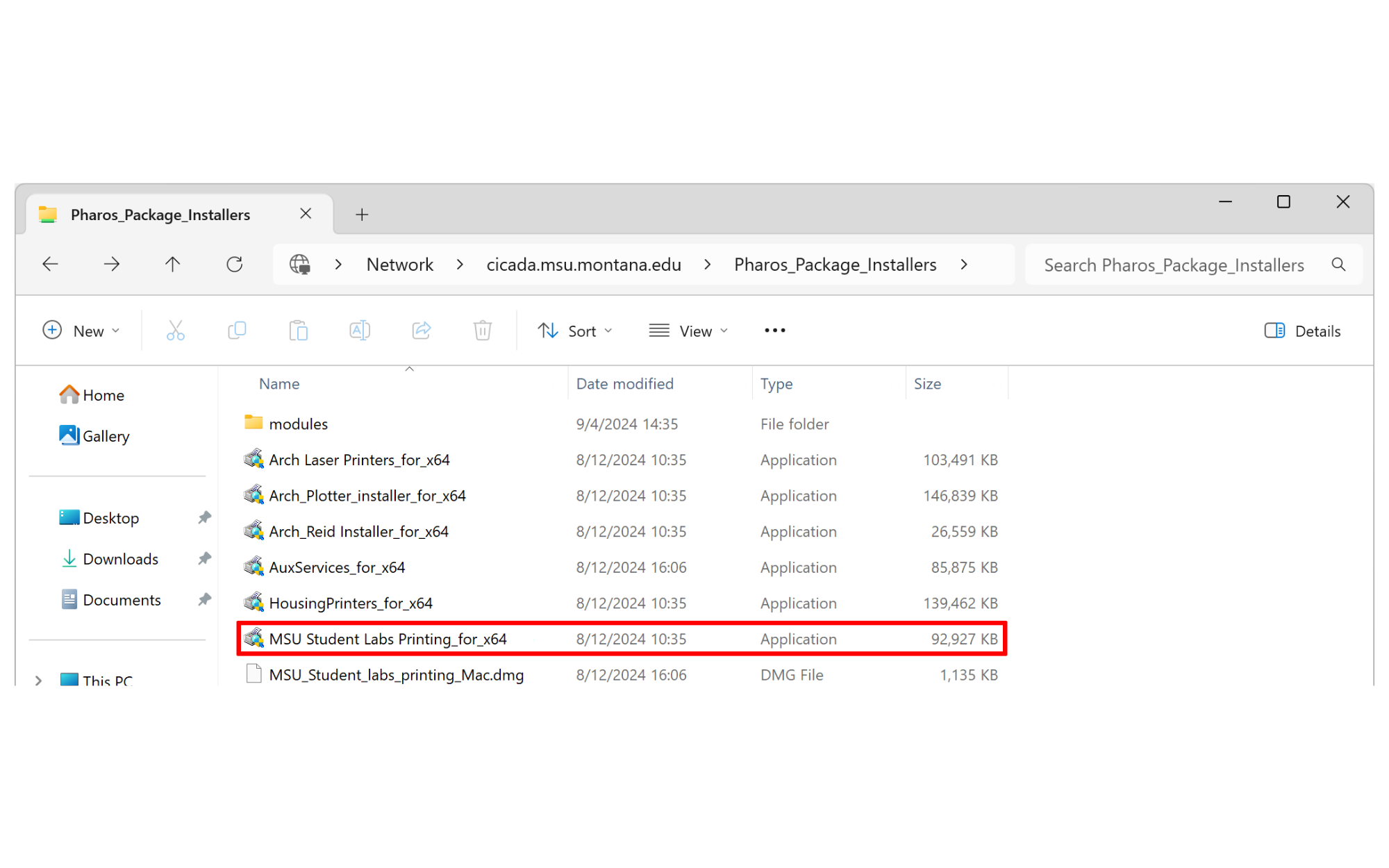
5. The "Pharos_Package_Installers" folder will open automatically. Select MSU Student Labs Printing_for_x64 file to install the printers.
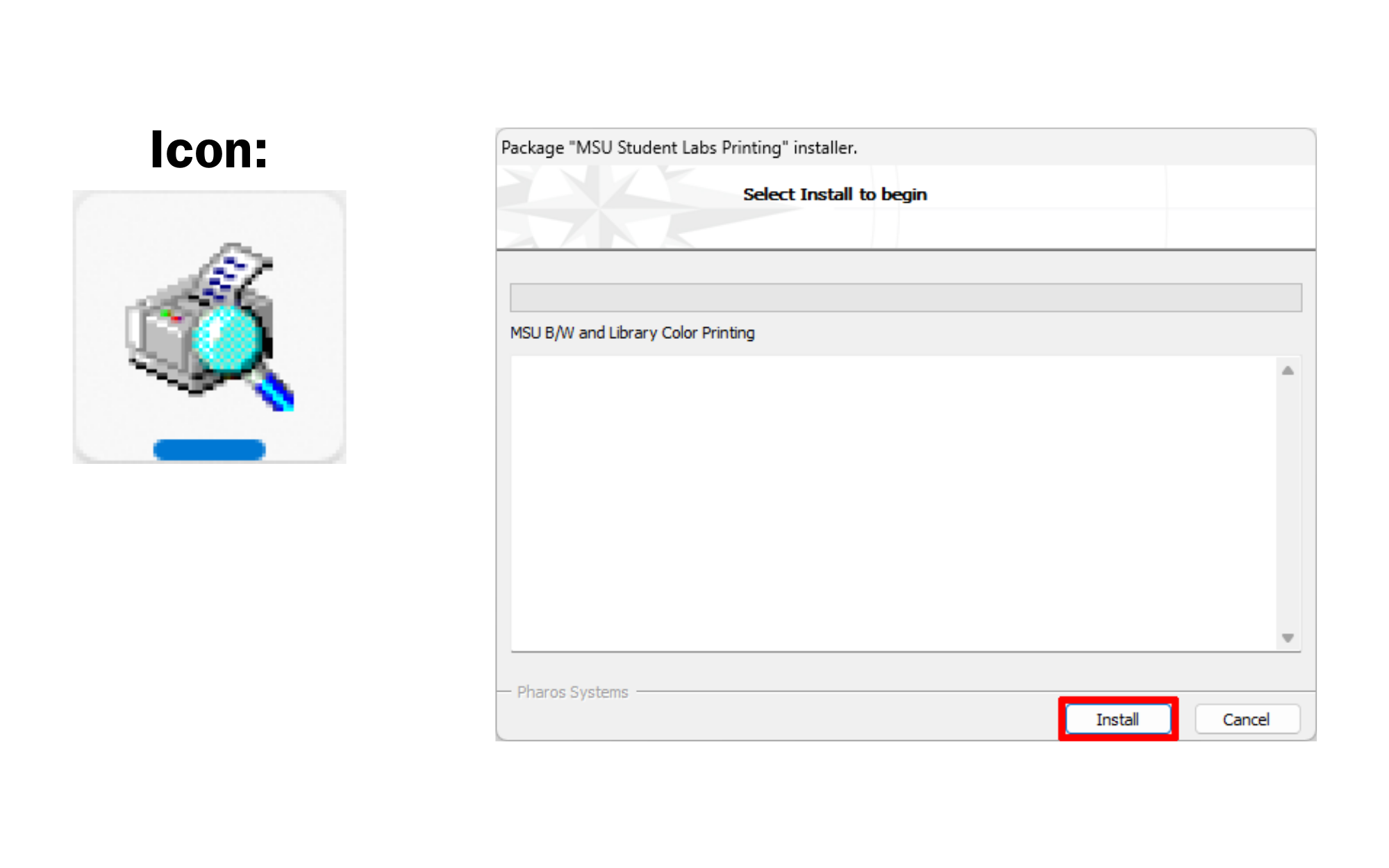
6. Once the installer opens, click the install in the bottom of the screen and wait for it to complete. Once it completes successfully, click the finish button when it appears.
a. If you do not see this window, it may have opened in the background. Check for the icon in the taskbar and click it.

Printing, Scanning & Copying Self-Service Options
Paying for Printing Using a CatCard
Black & White Printing: Students taking 7 or more credits receive $7.50 for black & white printing on the CatCards each semester. This balance cannot be used for color printing.
Color Printing: The library has one color printer that accepts CatCard payments. The $7.50 for black & white printing does not work for color printing. CatCards must be loaded with additional funds to print in color.
Paying for Printing Using Cash, Credit Card, or Check
The library has Black & White and Color cash printing stations available located at the Library Service Desk on the 1st floor.
*200 total page maximum at the Cash Printing Stations. If you need to print a large quantity of documents, ask the library service desk about available options.
Printing Pricing |
||||
|
|
Black & WhiteSingle Sided |
Black & WhiteDouble sided |
ColorSingle & Double sided |
|
| CatCard | .03¢/ sheet | .05¢/ sheet | .50¢/ side | |
| Cash, Check, or Credit Card* | .05¢/ sheet | .10¢/ sheet | .50¢/ side | |
*We accept cash, check, all major debit and credit cards, and mobile pay (Apple Pay, Google Pay, Samsung Pay). Credit card minimum $1.00.